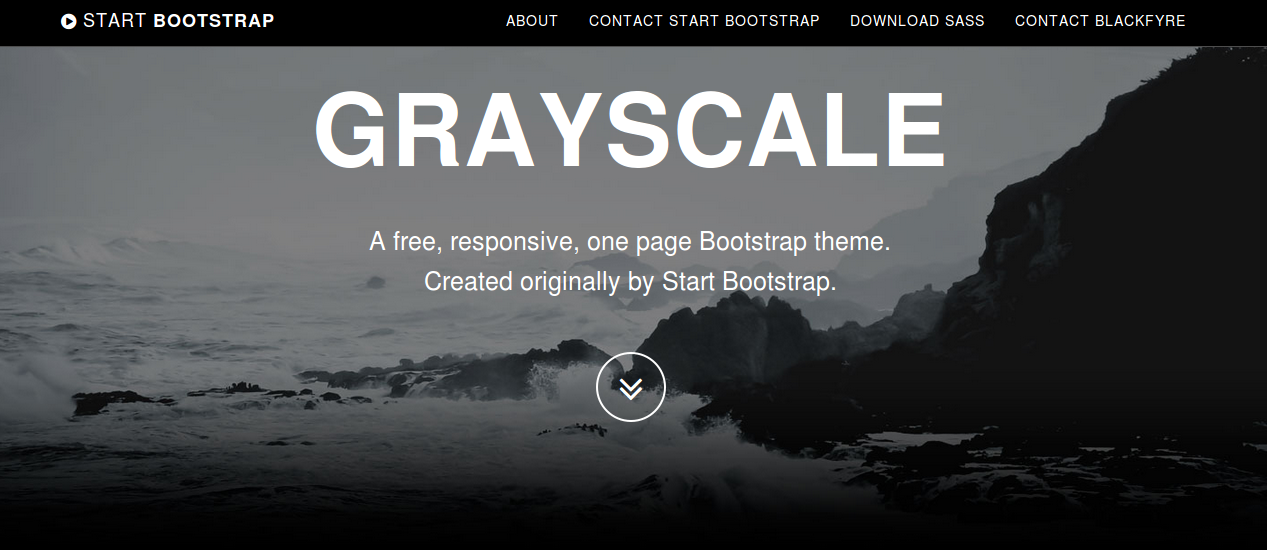
Bootstrap 4’s responsive navbars

Bootstrap 4 is in development. The alpha 3 stage had been reached yet. The new navbar is a simple wrapper for positioning branding, navigation, and other elements into a concise navigation header.

Many people has started testing Bootstrap 4 already. Before you start you should know that i did NOT switch from Less to Sass, but Bootstrap did. The CSS code of Bootstrap 4 is built with Sass now. Those who are no familiar with Sass yet should definitely read my new Sass and Compass Designer’s Cookbook book.

You can use Bootstrap CLI to test Bootstrap 4. Many templates are available yet. Bootstrap CLI is suitable for fast prototyping too!

At the time of writing this blog the code for the responsive navbar is not finished yet. I will provide you some quick fixes which enable you to use the responsive navbar in your new Bootstrap 4 projects. Notice that you should not use any alpha code for production.

The HTML code for a responsive navbar may look like that shown beneath:

<nav class="navbar navbar-dark navbar-full" role="navigation">
<div class="container">
<a class="navbar-brand" href="index.html">Navbar</a>
<button class="navbar-toggler hidden-md-up pull-xs-right" type="button" data-toggle="collapse" data-target="#collapsiblecontent">
&#9776;
</button>
<ul class="nav navbar-nav navbar-toggleable-sm collapse" id="collapsiblecontent">
<li class="nav-item">
<a class="nav-link active" href="#">Home <span class="sr-only">(current)</span></a>
</li>
<li class="nav-item">
<a class="nav-link" href="#">Features</a>
</li>
<li class="nav-item">
<a class="nav-link" href="#">Pricing</a>
</li>
<li class="nav-item">
<a class="nav-link" href="#">About</a>
</li>
</ul>
</div>
</nav>

Notice the hidden-md-up and navbar-toggleable-sm classes. The hidden-md-up class ensure that the “hamburger” menu to toggle the collapsing of the menu is only visible on the small viewports (the xs and sm grids). The navbar-toggleable-sm class collapses the menu and make it toggleable on the the xs and sm grids. The responsive navbar requires Bootstrap’s JavaScript Collapse plugin. When your navbar contains dropdowns, as explained later on, the Dropdown Plugin is required too.

Till the alpha-3 release of Bootstrap 4 the menu items do not stack for the collapsed menu. You can fix this by using the following SCSS code and recompile Bootstrap:

.navbar {
@include media-breakpoint-down(sm) {
.navbar-brand,
.nav-item {
float: none;
}
}
}

Now your menu items stack, but all nav items except from the first one got a margin-left. Fix the margin by editing the following SCSS code:

.navbar {
@include media-breakpoint-down(sm) {
.nav-item + .nav-item {
margin-left: 0;
}
}
}

Both solutions provide above use the media-breakpoint-down() mixin. Setting the @media with a max-width afterward will break the mobile first nature of Bootstrap 4, but for now these quick fixes will help you to test and protype with Bootstrap before the final version is released.

Dropdown menus in the navbar of Bootstrap 4

Bootstrap’s Dropdown Plugin enable you to create dropdown menus with ease. You can also add these dropdown menus in your navbar as follows:

<ul class="nav navbar-nav navbar-toggleable-sm collapse" id="collapsiblecontent">
<li class="nav-item">
<a class="nav-link active" href="#">Home <span class="sr-only">(current)</span></a>
</li>
<li class="nav-item dropdown">
<a class="nav-link dropdown-toggle" data-toggle="dropdown" href="#" role="button" aria-haspopup="true" aria-expanded="false">
Features
</a>
<div class="dropdown-menu">
<a class="dropdown-item" href="#">Action</a>
<a class="dropdown-item" href="#">Another action</a>
<a class="dropdown-item" href="#">Something else here</a>
<div class="dropdown-divider"></div>
<a class="dropdown-item" href="#">Separated link</a>
</div>
</li>
</ul>

When expecting the results in your browser you’ll find that the second menu item got a awesome dropdown menu:
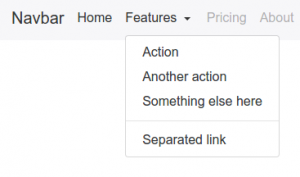
Dropdown menu on the large grid

For screens smaller than the responsive breakpoint (768px) the dropdown menu should act like a normal nested ul element. Again Sass will save us. You can use the the following SCSS code to turn the dropdown menu into a nested collapsing element of list of nav items:

@include media-breakpoint-down(sm) {
.navbar {

.nav-item + .nav-item {
margin-left: 0;
}

.dropdown {
position: initial;
}

.dropdown-menu {
position: initial;
z-index: initial;
float: initial;
border: initial;
border-radius: initial;
}
}
}

On the small viewports the dropdown menu will now look like that shown in the figure below:
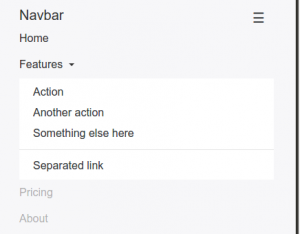
Dropdown menu in the small grid

You can use Bootstrap CLI to test the responsive Bootstrap 4 navbar with dropdown menus:

[sudo] npm install -g gulp bower
npm install bootstrap-cli --global

And use the following command to set up the responsive Bootstrap 4 navbar with dropdown menus example:

bootstrap new --template responsive-navbar-dropdowns

Justified navbar items

Bootstrap 4 removes the option to justify your navbar items. You can justify your navbar items in Bootstrap 4 by using the nav-justified mixin:

// Justified nav links
// -------------------------

@mixin nav-justified($breakpoint: md) {
width: 100%;

.nav-item {
float: none;
}

.nav-link {
text-align: center;
margin-bottom: 5px;
}

> .dropdown .dropdown-menu { //todo: remove child selector
top: auto;
left: auto;
}

@include media-breakpoint-up($breakpoint) {
.nav-item {
display: table-cell;
width: 1%;
}
.nav-link {
margin-bottom: 0;
}
}
}

Use the following SCSS code to use the nav-justified mixin above:

.navbar {
@include nav-justified;
}

Recompile Bootstrap and you’ll find that your navbar will look like that shown in the figure below:

Bootstrap 4 Justified navbar items


You can test the Justified navbar items for Bootstrap 4 with Bootstrap CLI again:

bootstrap new --template nav-justified

Centered navbar items

To center a ul element inside a div element you’ll have to set text-align: center (you can use the predefined text-xs-center class of Bootstrap for that) and display: inline-block; for your centered list.

Your HTML code:

<nav class="navbar navbar-light main-nav">
<div class="container text-xs-center">
<ul class="nav navbar-nav pull-xs-left">
<li class="nav-item active">
<a class="nav-link" href="#">Home</a>
</li>
<li class="nav-item">
<a class="nav-link" href="#">Download</a>
</li>
<li class="nav-item">
<a class="nav-link" href="#">Register</a>
</li>
</ul>

<ul class="nav navbar-nav" style="display: inline-block;">
<li class="nav-item"><a class="nav-link" href="#">Website Name</a></li>
</ul>

<ul class="nav navbar-nav pull-xs-right">
<li class="nav-item">
<a class="nav-link" href="#">Rates</a>
</li>
<li class="nav-item">
<a class="nav-link" href="#">Help</a>
</li>
<li class="nav-item">
<a class="nav-link" href="#">Contact</a>
</li>
</ul>
</div>
</nav>

The results:

Bootstrap 4 Centered Navbar Item

NO, i did NOT switch from Less to Sass!

ince i announced my new Book a while ago, many people already asked me if i did switch from Less to Sass. My new book is called “Sass and Compass Designer’s Cookbook” and before i wrote some books about Less. I’m not going to tell you which pre-processor for CSS code you should use. Many others already wrote about Less vs Sass. I only advice you to use a pre-processor for CSS ever, if you do not yet you should start today!

CSS pre-processors like Sass and Less help you to code your CSS code DRY (Do not Repeat Yourself). Pre-processors solve the disability of CSS to use variables and function to prevent code duplications. Coding non-DRY CSS code every day is definitely a defect in your develop process and there is no reason to not fix this defect directly!

What are the differences between Sass and Less? Sass has been written in Ruby and Less in JavaScript (original in Ruby too).

Less runs in Node and browser (client side), Rihno support seems to be dropped since v2, but their is also less4j. Most people will only use Less in browser for testing purposes. Less in Node can be used for the command line compiler and easily integration with task runners like Grunt and Gulp to set up complete build chains.

On the other hand there is libsass, the c/c++ library with interpreters for C, Node, JavaScript and even Ruby. The JavaScript interpreter enable you to run Sass in browser too, whilst node-sass can be used to set up a build chain.

I think the big difference will be the language itself. Less is declarative language designed to behave and look as closely to css as possible. Sass on the other hand looks more like a imperative language. Both languages extend CSS with variables, nesting, mixins and inheritance. Sass allows function whilst Less does not, Sass uses if / else statement and Less uses guards to achieve the same. Same for loops; Sass has a @while and @for directive and Less uses guards here too.

Side effects of the declarative nature of Less are the lazy loading and last declaration wins rule for variables, which means that you can easily override any variable by putting the definition afterwards. The ability to put a variable definition afterwards makes Less very suitable to implement flexible frameworks and other reusable structures.

But i’m sure that you are still wondering which pre-processor you should use for your project. I think your choice should depend on the components and frameworks you will use for your project. When you start a Foundation project you will choose Sass and for a Bootstrap 3 project Less will be a better choice.

You should notice that Bootstrap 4 switches from Less to Sass recently. Their motivation: “Sass  compiles faster than ever thanks to Libsass, and we join an increasingly large community of Sass developers”. The choice of the Bootstrap team could be the kiss of death for Less. Even if so, this is still not a proof of the superiority of Sass, because of factors which cause such a lock-in, or path-dependence may be very complex. Also remember the Video 2000 system of Philips or your own QWERTY keyboard.

Preserve settings and customizations when updating Bootstrap

Recently i launched the Bootstrap CLI tool. This tool installs Bootstrap 4 and an example template to start your project.

The templates for the Bootstrap CLI tool install Bootstrap 4 with bower, which means that you can update Bootstrap by simply running bower update. Updating Bootstrap shouldn’t destroy your changes.

All of Bootstrap’s Sass variable are declared with the !default flag, in the _variables.scss partial file. Using a copy of this file will be help to preserve your changes. Disadvantage of the preceding solution is that new variables added in the new release become undeclared and should be added by hand.

You can prevent the undeclared variables by loading the original and updated _variables.scss from your bower directory after your local one. You should rename your local file.

In your app.scss the preceding should look like that shown beneath:

@import "util/variables"; // non bootstrap project variables
@import "bootstrap-variables"; //local copy
@import "bootstrap.scss"; //local copy
// import or write your custom code here

When new variables are added in the new release they will be set to their defualt value and new default values will overwritten by the local copy. In the case you want to change a new variable, you still have to add it by hand in your local copy. Also new modules and components should be added by hand in the local bootstrap.scss file.

The local _bootstrap-variables.scss and _bootstrap.scss are not automatically generated when creating a new project because of updates of Bootstrap may break the template code.

Bootstrap 4 and WordPress

As already mentioned in my previous post about Bootstrap 4; i have built a WordPress Starter Theme with Bootstrap 4. If you like both Bootstrap and WordPress you should really try it!

People claim that Bootstrap and WordPress don’t always match, some opinions about that can be found at When to Use Bootstrap for Your WordPress Theme (And When Not To) and Why Bootstrap is a bad fit for WordPress Themes.

The problem, Bootstrap is not pure semantic and uses predefined presentational CSS classes for layout and other markup, WordPress uses more semantical code by default, but also has its own CSS classes presentation. So Bootstrap CSS classes do not fit WordPress’ HTML code by default. Two way to fix the preceding; change the HTML output of WordPress or applies Bootstrap’s (S)CSS on the default WordPress classes. Also notice that the SCSS code of Bootstrap, Less code for earlier version had been refactored to avoid both extends and child selectors, which means the way you can use this classes become more flexible.

When changing the HTML output of WordPress, people speak about the “nav walker” thing, indeed you have to create a custom nav walker which enables you to display the Bootstrap CSS classes in the HTML code of your page navigation structures. You can download these walkers anywhere. In the JBST theme the following nav walker classes had been used:

<?php 
// Big thanks to Brett Mason (https://github.com/brettsmason) for the awesome walker
class Topbar_Menu_Walker extends Walker_Nav_Menu {

    // add main/sub classes to li's and links(&$output, $item, 
    function start_el( &$output, $item, $depth = 0, $args = array(), $id = 0) {
   
  
    // passed classes
    $classes = empty( $item->classes ) ? array() : (array) $item->classes;
    $class_names = esc_attr( implode( ' ', apply_filters( 'nav_menu_css_class', array_filter( $classes ), $item ) ) );
    
    $active = in_array('current-menu-item', $item->classes);
    $indent = ' ';
    // build html
    $output .= $indent . '<li class="nav-item">';
  
    // link attributes
    $attributes  = ! empty( $item->attr_title ) ? ' title="'  . esc_attr( $item->attr_title ) .'"' : '';
    $attributes .= ! empty( $item->target )     ? ' target="' . esc_attr( $item->target     ) .'"' : '';
    $attributes .= ! empty( $item->xfn )        ? ' rel="'    . esc_attr( $item->xfn        ) .'"' : '';
    $attributes .= ! empty( $item->url )        ? ' href="'   . esc_attr( $item->url        ) .'"' : '';
    if(in_array('current-menu-item', $item->classes)) {
      $attributes .= ' class="nav-link active"';
        $item_output = sprintf( '%1$s<a%2$s>%3$s%4$s%5$s  <span class="sr-only">(current)</span></a>%6$s',
        $args->before,
        $attributes,
        $args->link_before,
        apply_filters( 'the_title', $item->title, $item->ID ),
        $args->link_after,
        $args->after
        );
    }
    else {
      $attributes .= ' class="nav-link"';
      $item_output = sprintf( '%1$s<a%2$s>%3$s%4$s%5$s</a>%6$s',
        $args->before,
        $attributes,
        $args->link_before,
        apply_filters( 'the_title', $item->title, $item->ID ),
        $args->link_after,
        $args->after
        );
    }      

  
    // build html
    $output .= apply_filters( 'walker_nav_menu_start_el', $item_output, $item, $depth, $args );
    }
}
</pre>

As you can see creating “nav walkers” is not that difficult.

In stead of changing the HTML you can also try to change the compiled CSS code. You can take the page pagination as an example. Currently the JBST theme has got a custom function to display the page navigation which result in the HTML like that shown in the code beneath:

<nav style="text-align:center">
  <ul class="pagination">
    <li class="page-item"><a href="http://wordpress/index.php/page/2/" >Previous</a></li>
    <li class="page-item"><a class="page-link" href="http://wordpress/">1</a></li>
    <li class="page-item"><a class="page-link" href="http://wordpress/index.php/page/2/">2</a></li>
    <li class="page-item active"><span class="page-link"> 3 </span></li>
    <li class="page-item"><a class="page-link" href="http://wordpress/index.php/page/4/">4</a></li>
    <li class="page-item"><a href="http://wordpress/index.php/page/4/" >Next</a></li>
  </ul>                   
</nav>        					

The above HTML code for the page navigation contains Bootstrap CSS classes for presentation.

When using WordPress’ built-in function for page navigation as follows:

<?php
the_posts_pagination( array(
    'mid_size'  => 2,
    'prev_text' => __( 'Previous', 'textdomain' ),
    'next_text' => __( 'Next', 'textdomain' ),
) );
?>   

The function call above will generate HTML code like that shown beneath:

<nav class="navigation pagination" role="navigation">
  <h2 class="screen-reader-text">Posts navigation</h2>
  <div class="nav-links"><a class="prev page-numbers" href="http://wordpress/index.php/page/2/">Previous</a>
  <div class="nav-links">
    <a class="prev page-numbers" href="http://wordpress/index.php/page/2/">Back</a>
    <a class="page-numbers" href="http://wordpress/">1</a>
    <a class="page-numbers" href="http://wordpress/index.php/page/2/">2</a>
    <span class="page-numbers current">3</span>
    <a class="page-numbers" href="http://wordpress/index.php/page/4/">4</a>
    <a class="next page-numbers" href="http://wordpress/index.php/page/4/">Onward</a>
  </div>
</nav>  

Now you can code some CSS code which applies Bootstrap’s presentation for the page navigation on the CSS classes above. You SCSS should look like that shown beneath:

// pagination default
.navigation.pagination {
  @include center-block;
  text-align: center; 
  .nav-links {
    @extend .pagination;
    .page-numbers {
      @extend .page-link;
      &:first-child {
        margin-left: 0;
        @include border-left-radius($border-radius);
      }
      &:last-child {
        @include border-right-radius($border-radius);
      }
      &.current {
        @include plain-hover-focus {
          z-index: 2;
          color: $pagination-active-color;
          cursor: default;
          background-color: $pagination-active-bg;
          border-color: $pagination-active-border;
        }
      }
    }
  }
}

As you can see the above SCSS code looks complex and requires deep knowledge of Bootstrap’s SCSS code. Complexity of the SCSS code partially due to the SCSS code requires the .page-links wrapped into .page-item. Refactoring of the pagination component may reduce the complexity of the SCSS code in future, see also Refactor pagination in accordance with the Navs.

After compiling the SCSS code your page navigation will look like that shown in the figure below:

navigation

Both solutions; HTML or CSS change will give you the same result. When using the Sass @extend directive the compiled CSS code will become a little larger, due to having both the original and the extended selector. On the other hand there is no need to change WordPress by adding custom “walkers” and functions. At the moment i’m not sure which way to choose for the JBST 4 theme, i think most people will expect the HTML of the theme contains Bootstrap’s CSS classes.

Implementing Bootstrap with only SCSS / CSS on a bare theme like HTML5 Blank or _s, or underscores seems interesting too. Possible i will create some like “JBST 4 HTML5” theme in future.
Pure semantic HTML5 seems not possible with the Bootstrap Grid’s now, cause the .container wrapper is still required even when the optional flexbox support has been enabled. But you can compile Bootstrap without the predefined CSS grid classes and use the grid mixins to build your responsive layouts.

Also read What’s New in Bootstrap 4, and Happy coding!

How to install a Start Bootstrap theme on Ruby on Rails 4 using Sass?

I want to install a theme called Grayscale of Start Bootstrap and I don’t know how to do it.

Install a new Ruby on Rails by running >> rails new grayscale. Navigate to your project folder >> cd grayscale then run the following commands:

Sass / SCSS

>> git clone https://github.com/blackfyre/https://github.com/blackfyre/grayscale-sass.git.git
>> cd grayscale-sass
>> bower install
>> cd ..
>> mv app/assets/stylesheets/application.css app/assets/stylesheets/application.scss

Then edit app/assets/stylesheets/application.scss. This file should contain only the following line of code:

@import '../../../grayscale-sass/assets/sass/main.scss';

Javascipt

Edit app/assets/javascripts/application.js. This file should contain the code like that shown below:

//= require jquery
//= require jquery_ujs
//= require turbolinks
//= require_tree .


//= require grayscale-sass/assets/bower_components/jquery.easing/js/jquery.easing.js
//= require grayscale-sass/assets/bower_components/bootstrap/dist/js/bootstrap.js
//= require grayscale-sass/assets/js/grayscale.js

Views

Create a controller called “welcome” with an action called “index”, by running the following command:

>> bin/rails generate controller welcome index

The app/views/welcome/index.html.erb and app/views/layouts/application.html.erb should be edit according grayscale-sass/index.httml

index.html.erb

  <!-- Navigation -->
 <nav class="navbar navbar-custom navbar-fixed-top" role="navigation">
 <div class="container">
 <div class="navbar-header">
 <button type="button" class="navbar-toggle" data-toggle="collapse" data-target=".navbar-main-collapse">
 <i class="fa fa-bars"></i>
 </button>
 <a class="navbar-brand page-scroll" href="#page-top">
 <i class="fa fa-play-circle"></i> <span class="light">Start</span> Bootstrap
 </a>
 </div>

 <!-- Collect the nav links, forms, and other content for toggling -->
 <div class="collapse navbar-collapse navbar-right navbar-main-collapse">
 <ul class="nav navbar-nav">
 <!-- Hidden li included to remove active class from about link when scrolled up past about section -->
 <li class="hidden">
 <a href="#page-top"></a>
 </li>
 <li>
 <a class="page-scroll" href="#about">About</a>
 </li>
 <li>
 <a class="page-scroll" href="#contact">Contact Start Bootstrap</a>
 </li>
 <li>
 <a class="page-scroll" href="#download2">Download SASS</a>
 </li>
 <li>
 <a class="page-scroll" href="#contact2">Contact Blackfyre</a>
 </li>
 </ul>
 </div>
 <!-- /.navbar-collapse -->
 </div>
 <!-- /.container -->
 </nav>

 <!-- Intro Header -->
 <header class="intro">
 <div class="intro-body">
 <div class="container">
 <div class="row">
 <div class="col-md-8 col-md-offset-2">
 <h1 class="brand-heading">Grayscale</h1>
 <p class="intro-text">A free, responsive, one page Bootstrap theme.<br>Created originally by Start Bootstrap.</p>
 <a href="#about" class="btn btn-circle page-scroll pulse">
 <i class="fa fa-angle-double-down"></i>
 </a>
 </div>
 </div>
 </div>
 </div>
 </header>

 <!-- About Section -->
 <section id="about" class="container content-section text-center">
 <div class="row">
 <div class="col-lg-8 col-lg-offset-2">
 <h2>About Grayscale</h2>
 <p>Grayscale is a free Bootstrap 3 theme created by Start Bootstrap. It can be yours right now, simply download the template on <a href="http://startbootstrap.com/template-overviews/grayscale/">the preview page</a>. The theme is open source, and you can use it for any purpose, personal or commercial.</p>
 <p>This theme features stock photos by <a href="http://gratisography.com/">Gratisography</a> along with a custom Google Maps skin courtesy of <a href="http://snazzymaps.com/">Snazzy Maps</a>.</p>
 <p>This version of Grayscale includes full HTML, CSS, and custom JavaScript files along with SASS files and bower for an even easier customization.</p>
 </div>
 </div>
 </section>

 <!-- Contact Section -->
 <section id="contact" class="container content-section text-center">
 <div class="row">
 <div class="col-lg-8 col-lg-offset-2">
 <h2>Contact Start Bootstrap</h2>
 <p>Feel free to email us to provide some feedback on our templates, give us suggestions for new templates and themes, or to just say hello!</p>
 <p><a href="mailto:feedback@startbootstrap.com">feedback@startbootstrap.com</a>
 </p>
 <ul class="list-inline banner-social-buttons">
 <li>
 <a href="https://twitter.com/SBootstrap" class="btn btn-default btn-lg"><i class="fa fa-twitter fa-fw"></i> <span class="network-name">Twitter</span></a>
 </li>
 <li>
 <a href="https://github.com/IronSummitMedia/startbootstrap" class="btn btn-default btn-lg"><i class="fa fa-github fa-fw"></i> <span class="network-name">Github</span></a>
 </li>
 <li>
 <a href="https://plus.google.com/+Startbootstrap/posts" class="btn btn-default btn-lg"><i class="fa fa-google-plus fa-fw"></i> <span class="network-name">Google+</span></a>
 </li>
 </ul>
 </div>
 </div>
 </section>

 <!-- Download SASS Section -->
 <section id="download2" class="content-section text-center">
 <div class="download-section">
 <div class="container">
 <div class="col-lg-8 col-lg-offset-2">
 <h2>Download Grayscale</h2>
 <p>You can download the SASS version of Grayscale for free on the GITHUB page.</p>
 <a href="https://github.com/blackfyre/grayscale-sass/" class="btn btn-default btn-lg">Visit the Download Page</a>
 </div>
 </div>
 </div>
 </section>

 <!-- Contact Section -->
 <section id="contact2" class="container content-section text-center">
 <div class="row">
 <div class="col-lg-8 col-lg-offset-2">
 <h2>Contact Blackfyre</h2>
 <p>If you have problems with the <b>SASS version</b> of the original template, please report it at the</p>
 <p><a href="https://github.com/blackfyre/grayscale-sass/issues">GITHUB Issues page</a>
 </p>
 <ul class="list-inline banner-social-buttons">
 <li>
 <a href="https://twitter.com/gnick666" class="btn btn-default btn-lg"><i class="fa fa-twitter fa-fw"></i> <span class="network-name">Twitter</span></a>
 </li>
 <li>
 <a href="https://github.com/blackfyre" class="btn btn-default btn-lg"><i class="fa fa-github fa-fw"></i> <span class="network-name">Github</span></a>
 </li>
 </ul>
 </div>
 </div>
 </section>


 <!-- Map Section -->
 <div id="map"></div>

 <!-- Footer -->
 <footer>
 <div class="container text-center">
 <p>Copyright &copy; Your Website 2014</p>
 </div>
 </footer>

 <!-- Google Maps API Key - Use your own API key to enable the map feature. More information on the Google Maps API can be found at https://developers.google.com/maps/ -->
 <script type="text/javascript" src="https://maps.googleapis.com/maps/api/js?key=AIzaSyCRngKslUGJTlibkQ3FkfTxj3Xss1UlZDA&sensor=false"></script>


application.html.erb

<!DOCTYPE html>
<html>
<head>
 <title>Grayscale</title>
 <%= stylesheet_link_tag 'application', media: 'all', 'data-turbolinks-track' => true %>
 <%= csrf_meta_tags %>
</head>
<body id="page-top" data-spy="scroll" data-target=".navbar-fixed-top">

<%= yield %>
<%= javascript_include_tag 'application' %>
</body>
</html>

Fonts

>> cp -r grayscale-sass/fonts public

Images

>> cp -r grayscale-sass/assets/images public

Test

Now you can run >> bin/rails server and open http://localhost:3000/welcome/index in your browser. The result now should look like that shown in the figure beneath: grayscale