Bootstrap 4 and WordPress

As already mentioned in my previous post about Bootstrap 4; i have built a WordPress Starter Theme with Bootstrap 4. If you like both Bootstrap and WordPress you should really try it!

People claim that Bootstrap and WordPress don’t always match, some opinions about that can be found at When to Use Bootstrap for Your WordPress Theme (And When Not To) and Why Bootstrap is a bad fit for WordPress Themes.

The problem, Bootstrap is not pure semantic and uses predefined presentational CSS classes for layout and other markup, WordPress uses more semantical code by default, but also has its own CSS classes presentation. So Bootstrap CSS classes do not fit WordPress’ HTML code by default. Two way to fix the preceding; change the HTML output of WordPress or applies Bootstrap’s (S)CSS on the default WordPress classes. Also notice that the SCSS code of Bootstrap, Less code for earlier version had been refactored to avoid both extends and child selectors, which means the way you can use this classes become more flexible.

When changing the HTML output of WordPress, people speak about the “nav walker” thing, indeed you have to create a custom nav walker which enables you to display the Bootstrap CSS classes in the HTML code of your page navigation structures. You can download these walkers anywhere. In the JBST theme the following nav walker classes had been used:

<?php 
// Big thanks to Brett Mason (https://github.com/brettsmason) for the awesome walker
class Topbar_Menu_Walker extends Walker_Nav_Menu {

    // add main/sub classes to li's and links(&$output, $item, 
    function start_el( &$output, $item, $depth = 0, $args = array(), $id = 0) {
   
  
    // passed classes
    $classes = empty( $item->classes ) ? array() : (array) $item->classes;
    $class_names = esc_attr( implode( ' ', apply_filters( 'nav_menu_css_class', array_filter( $classes ), $item ) ) );
    
    $active = in_array('current-menu-item', $item->classes);
    $indent = ' ';
    // build html
    $output .= $indent . '<li class="nav-item">';
  
    // link attributes
    $attributes  = ! empty( $item->attr_title ) ? ' title="'  . esc_attr( $item->attr_title ) .'"' : '';
    $attributes .= ! empty( $item->target )     ? ' target="' . esc_attr( $item->target     ) .'"' : '';
    $attributes .= ! empty( $item->xfn )        ? ' rel="'    . esc_attr( $item->xfn        ) .'"' : '';
    $attributes .= ! empty( $item->url )        ? ' href="'   . esc_attr( $item->url        ) .'"' : '';
    if(in_array('current-menu-item', $item->classes)) {
      $attributes .= ' class="nav-link active"';
        $item_output = sprintf( '%1$s<a%2$s>%3$s%4$s%5$s  <span class="sr-only">(current)</span></a>%6$s',
        $args->before,
        $attributes,
        $args->link_before,
        apply_filters( 'the_title', $item->title, $item->ID ),
        $args->link_after,
        $args->after
        );
    }
    else {
      $attributes .= ' class="nav-link"';
      $item_output = sprintf( '%1$s<a%2$s>%3$s%4$s%5$s</a>%6$s',
        $args->before,
        $attributes,
        $args->link_before,
        apply_filters( 'the_title', $item->title, $item->ID ),
        $args->link_after,
        $args->after
        );
    }      

  
    // build html
    $output .= apply_filters( 'walker_nav_menu_start_el', $item_output, $item, $depth, $args );
    }
}
</pre>

As you can see creating “nav walkers” is not that difficult.

In stead of changing the HTML you can also try to change the compiled CSS code. You can take the page pagination as an example. Currently the JBST theme has got a custom function to display the page navigation which result in the HTML like that shown in the code beneath:

<nav style="text-align:center">
  <ul class="pagination">
    <li class="page-item"><a href="http://wordpress/index.php/page/2/" >Previous</a></li>
    <li class="page-item"><a class="page-link" href="http://wordpress/">1</a></li>
    <li class="page-item"><a class="page-link" href="http://wordpress/index.php/page/2/">2</a></li>
    <li class="page-item active"><span class="page-link"> 3 </span></li>
    <li class="page-item"><a class="page-link" href="http://wordpress/index.php/page/4/">4</a></li>
    <li class="page-item"><a href="http://wordpress/index.php/page/4/" >Next</a></li>
  </ul>                   
</nav>        					

The above HTML code for the page navigation contains Bootstrap CSS classes for presentation.

When using WordPress’ built-in function for page navigation as follows:

<?php
the_posts_pagination( array(
    'mid_size'  => 2,
    'prev_text' => __( 'Previous', 'textdomain' ),
    'next_text' => __( 'Next', 'textdomain' ),
) );
?>   

The function call above will generate HTML code like that shown beneath:

<nav class="navigation pagination" role="navigation">
  <h2 class="screen-reader-text">Posts navigation</h2>
  <div class="nav-links"><a class="prev page-numbers" href="http://wordpress/index.php/page/2/">Previous</a>
  <div class="nav-links">
    <a class="prev page-numbers" href="http://wordpress/index.php/page/2/">Back</a>
    <a class="page-numbers" href="http://wordpress/">1</a>
    <a class="page-numbers" href="http://wordpress/index.php/page/2/">2</a>
    <span class="page-numbers current">3</span>
    <a class="page-numbers" href="http://wordpress/index.php/page/4/">4</a>
    <a class="next page-numbers" href="http://wordpress/index.php/page/4/">Onward</a>
  </div>
</nav>  

Now you can code some CSS code which applies Bootstrap’s presentation for the page navigation on the CSS classes above. You SCSS should look like that shown beneath:

// pagination default
.navigation.pagination {
  @include center-block;
  text-align: center; 
  .nav-links {
    @extend .pagination;
    .page-numbers {
      @extend .page-link;
      &:first-child {
        margin-left: 0;
        @include border-left-radius($border-radius);
      }
      &:last-child {
        @include border-right-radius($border-radius);
      }
      &.current {
        @include plain-hover-focus {
          z-index: 2;
          color: $pagination-active-color;
          cursor: default;
          background-color: $pagination-active-bg;
          border-color: $pagination-active-border;
        }
      }
    }
  }
}

As you can see the above SCSS code looks complex and requires deep knowledge of Bootstrap’s SCSS code. Complexity of the SCSS code partially due to the SCSS code requires the .page-links wrapped into .page-item. Refactoring of the pagination component may reduce the complexity of the SCSS code in future, see also Refactor pagination in accordance with the Navs.

After compiling the SCSS code your page navigation will look like that shown in the figure below:

navigation

Both solutions; HTML or CSS change will give you the same result. When using the Sass @extend directive the compiled CSS code will become a little larger, due to having both the original and the extended selector. On the other hand there is no need to change WordPress by adding custom “walkers” and functions. At the moment i’m not sure which way to choose for the JBST 4 theme, i think most people will expect the HTML of the theme contains Bootstrap’s CSS classes.

Implementing Bootstrap with only SCSS / CSS on a bare theme like HTML5 Blank or _s, or underscores seems interesting too. Possible i will create some like “JBST 4 HTML5” theme in future.
Pure semantic HTML5 seems not possible with the Bootstrap Grid’s now, cause the .container wrapper is still required even when the optional flexbox support has been enabled. But you can compile Bootstrap without the predefined CSS grid classes and use the grid mixins to build your responsive layouts.

Also read What’s New in Bootstrap 4, and Happy coding!
Bootstrap 4 meets WordPress

Bootstrap 4 is coming soon! I build a WordPress theme for Bootstrap 4 (alpha release) inspired on the JOINTSWP starters theme. Bootstrap 4 comes with many improvements and new features. Bootstrap 4 is compiled with Sass instead of Less now.

You can download the JBST 4 theme at: https://github.com/bassjobsen/jbst-4-sass/archive/master.zip.

Now you can use Gulp and Sass to build your own custom version:

Install node.js.
Install bower.
Using the command line, navigate to your theme directory
Run npm install
Run gulp to confirm everything is working

Updating Bootstrap for your theme is simple as running bower update in your theme directory now.

Read more about Bootstrap 4 at The Official Bootstrap Blog or read the v4 alpha docs!

Don’t like Sass? Download a CSS only version of the JBST 4 theme at CSS only version

Bootstrap 4 ships with optional flexbox-based grid system and components, download a CSS only with flexbox support of the theme at CSS only version with flexbox support. To compile your own version of the theme with flexbox support you should edit the assets/scss/_variables.scss file and set $enable-flexbox: true;. Run gulp after your changes.Bootstrap 4, JBST 4 preview

A11Y Buttons

The JBST WordPress Theme meets WordPress.org’s Accessibility Guidelines. I think accessibility support is important. Recently i got a e-mail from Nick, Co-founder of HKC radio.

Nick told me JBST default navbar buttons don’t have a label or title. The login button has a title when logged in, but when not logged in the button only identifies itself as ‘button’.

After reading Nick’s e-mail i found the excellent blog post of Nicholas C. Zakas: Making accessible icon buttons.

There seems two ways around to solve this button problem. The first solution adds aria-label attribute to the buttonHTML element. Whilst the second solution uses an additional spanelement which is hidden for non-screenreader by the JBST’s built-in sr-only class.

I create a sample for page for both solutions, this page also includes the current situation, could you tell me which solution you prefer and why? Or do we need a combination of these solutions?

Please also let me know when the button dropdowns got any accessibility issue.

Brand Your New WordPress Website in 10 Minutes

If you need a WordPress Website quick (or you are lazy) and you already have a house style or at least a logo, than this tutorial is all you need to brand your WordPress website. If you don’t have a logo yet, you can order one at Jamedo Logo or simply use a picture that you like.

Please follow the easy steps below to get your own branded, seo-friendly and responsive WordPress website. Your website will be built with JBST and Twitter’s Bootstrap and full customizable with Less.

  1. Download and install WordPress using the Famous 5-Minute Install
  2. Download, install (do not active) JBST. Please notice that the JBST theme is also available from the wordpress.org directory
  3. Download, install and activate JBST Branding
  4. In your Dashboard: Appearance > Branding
  5. Upload your logo / or picture
  6. Recompile the Less code

More information about downloading, installing and activating WordPress themes can be found at: Using Themes.

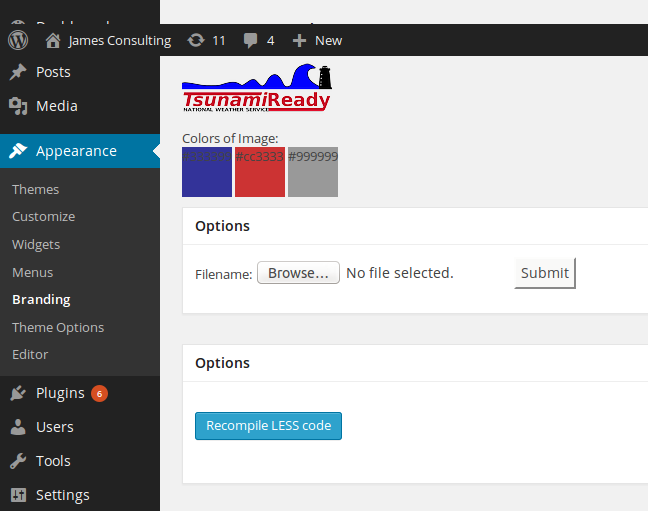
The following figure will show you how to upload your logo and recompile the Less code under Appearance > Branding in your Dashboard.

Brandingyourwebsite

The logo used in the preceding figure can be download at Pixabay and is available under the CC0 1.0 Universal (CC0 1.0) license.

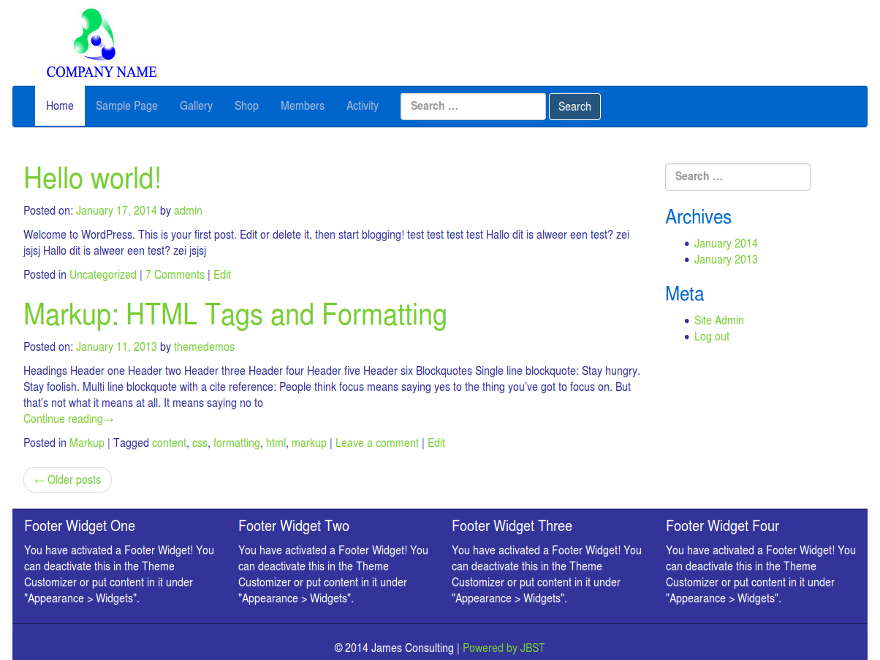
Some other examples can be found in the following figures:

brandingexamplelogo1

The logo used in the preceding figure can be download at Free Logos.

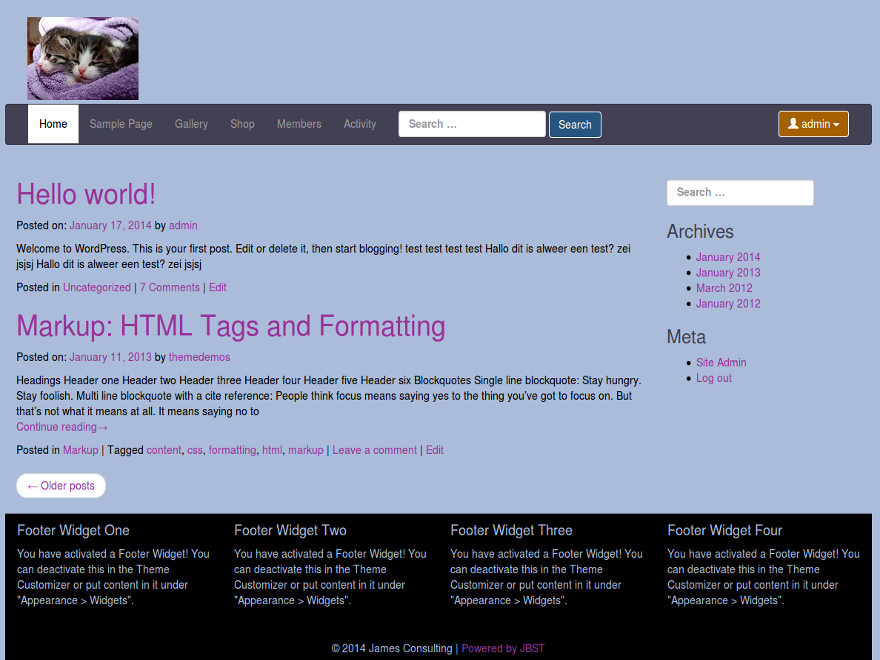
Or create a website for the cattery of the girlfriend of your neighbours’ nephew. The only thing you need is a picture of her lovely cats.

cattery

The picture used in the preceding figure can be download at Pixabay and is available under the CC0 1.0 Universal (CC0 1.0) license.

Please try it yourself and share your example designs with me.

WordPress theming, the comment_form() call, and the power of Less

When preparing the upload of the next version of JBST to wordpress.org I found the usage of comment_form(). The documentation of comment_form() can be found at Function Reference/comment form. The documentation of comment_form() doesn’t explain why you should have to use this comment_form() call instead of code your comment form’s HTML directly into your comments.php template. On the first sight using comment_form() and setting the comment form field’s HTML by PHP as an function argument or inside a filter, seems the break the MVC principle. Templates should not contain PHP code at all.
Arguments to motivate the usage of comment_form() can be found at WordPress 3.0 Theme Tip: The Comment Form. Standardization is an important argument:

The comment_form function is new to 3.0. Basically, it standardizes the comments form. It makes it wonderful for us plugin authors, since now we can easily modify the comments form with various hooks and things.

When using comment_form() the HTML of the form fields can be set in two different ways, as shown below:

In the first place you can use the comment_form_default_fields filter. The comment_form_default_fields filter return an associative array which contains the HTML for each field as can be seen in the following code:


add_filter( 'comment_form_default_fields', function(){ 

	$commenter = wp_get_current_commenter();
	$req = get_option( 'require_name_email' );

	return array(

    'author' =>
      '<div class="form-group">
			  <label for="author">' . __("Name",'jamedo-bootstrap-start-theme')
			 . ($req ? " (". __("required",'jamedo-bootstrap-start-theme') .")" : '')
			 . ' </label>
			  <div class="input-group">
			  	<span class="input-group-addon"><i class="glyphicon glyphicon-user"></i></span>
			  	<input class="form-control" type="text" name="author" id="author" value="'
			  	. esc_attr($commenter['comment_author']). '" placeholder="'
			  	. __("Your Name",'jamedo-bootstrap-start-theme'). '"'
			  	. ($req ? ' required aria-required="true"' : ''). '/>'
			  . '</div>'
		  	. '</div>',

    'email' =>
      '<div class="form-group">
			  <label for="email">' . __("Email",'jamedo-bootstrap-start-theme')
			 . ($req ? " (". __("required",'jamedo-bootstrap-start-theme') .")" : '')
			 . ' </label>
			  <div class="input-group">
			  	<span class="input-group-addon"><i class="glyphicon glyphicon-envelope"></i></span>
			  	<input class="form-control" type="email" name="email" id="email" value="'
			  	. esc_attr($commenter['comment_author_email']). '" placeholder="'
			  	. __("Your Email",'jamedo-bootstrap-start-theme'). '"'
			  	. ($req ? ' required aria-required="true"' : ''). '/>'
			  . '</div>'
			  . '<span class="help-block">'. __("will not be published",'jamedo-bootstrap-start-theme'). '</span>'
		  	. '</div>',

    'url' => '<div class="form-group">
			  <label for="author">' . __("Website",'jamedo-bootstrap-start-theme')
			 . ' </label>
			  <div class="input-group">
			  	<span class="input-group-addon"><i class="glyphicon glyphicon-user"></i></span>
			  	<input class="form-control" type="url" name="url" id="url" value="'
			  	. esc_attr($commenter['comment_author_url']). '" placeholder="'
			  	. __("Your Website",'jamedo-bootstrap-start-theme'). '"'
			  	. '/>'
			  . '</div>'
		  	. '</div>'
    );}
  );

Secondly, the comment form field’s HTML can set with the array which is passed as an argument to comment_form() as follows:


$args = array ('fields'=> array('author' => '<input id="author" type="text" name="author" />'));
comment_form($args);

Please notice that the value of fields overwrites the settings of the comment_form_default_fields filter. The preceding code don’t set an email or url field which means the comment form won’t have these field too.

When using comment_form() in your templates you don’t have to code the different situations where the user is logged in or not, where the comments are open or closed, and so on. On the other hand you still have to code the function’s argument or filters as shown in the preceding.

Popular themes such as “Twentythirteen” use the comment_form() code which enables (plugin) developers to change the look and feel of the comment form with filters or CSS. In this standard situation theme coders only have to write comment_form() in the comments.php template and style the form with CSS.

WooCommerce

The WooCommerce Plugin uses the comment_form() code to build a review form. The code to create the review form will like that shown as in the following code:


comment_form( apply_filters( 'woocommerce_product_review_comment_form_args', $comment_form ) );


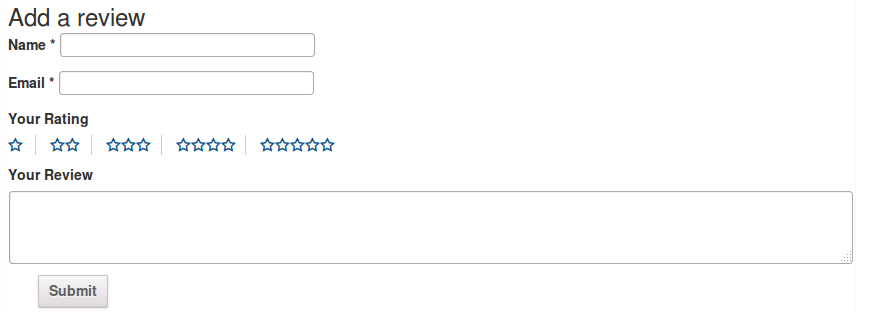
The additional woocommerce_product_review_comment_form_args filter adds extra flexibility for theme and plugin developers. In the following figure you will see how WooCommerce default review form will look:

WooCommerce's review form

JBST’s comments form

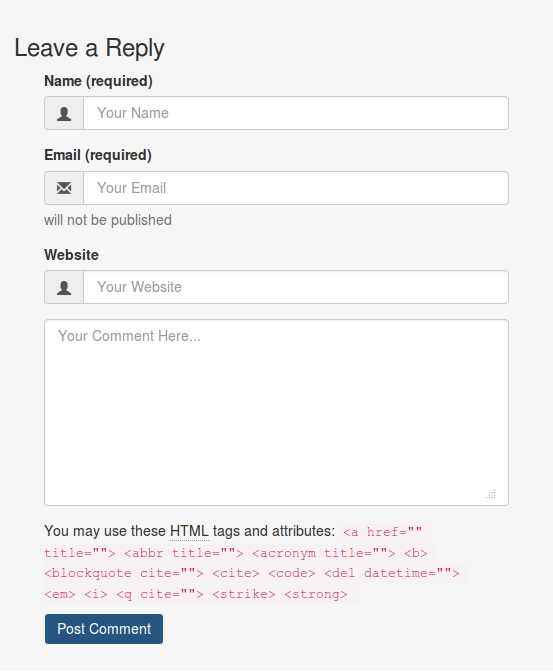
For JBST the comments form should be build with Bootstrap’s form classes and structures as can be found at: . To change the default input fields I use comment_form_default_fields filter as shown earlier in this text. Other changes are set by the argument passed to the comment_form() function as shown in the following code:


	comment_form(

			apply_filters ('jbst_comments_form_arguments', array('comment_notes_before' => '',
			'comment_field' => $comment_field,
			'title_reply' => $title_reply))
	);


The comment_form() function has no filters to change the submit button. You can change the text and the ID of the submit button with the argument array, but are not enable to change the HTML of the button (input type="submit"). The submit button can be styled with CSS. To style the submit button in JBST Bootstrap’s button classes are used. This button classes can be applied easily with Less. JBST has a built-in Less compiler. To style the submit button with Bootstrap’s button classes I use the Less code as follows:


#commentform {
	input[type="submit"] {
	&:extend(.btn all, .btn-primary all);
	}
}	


The .btn-primary button style class is variable in JBST, so the final Less code in PHP will look like the following:


#commentform {
	input[type="submit"] {
	&:extend(.btn all, .'.get_theme_mod( 'default_button_style', 'btn-primary' ).' all);
	}
}	


The following figure will show you how JBST comments form will look after the changes described in the preceding:

JBST's comment form


Adding a background gradient to Bootstrap’s navbar with Less

When writing a book about Less and have to answer a question about adding a background gradient to JBST’s navbar the answer was found easy. Bootstrap’s navbar is styled with two CSS classes the .navbar class sets it’s structure while the .navbar-default or .navbar-inverse classes add colors and other styling. Bootstrap’s mixins contain also mixin for CSS3 background gradients. With the preceding knowledge adding a background-gradient will be as simple as writing in Less:

.navbar-default {
#gradient > .vertical(lighten(@navbar-default-bg,10%),darken(@navbar-default-bg,10%));
}

You should append this code to bootstrap.less and recompile Bootstrap. After recompiling the default navbar will be look like that shown below:

Twitter's Bootstrap default navbar with background gradient

Who don’t want to recompile Bootstrap can try to use the compiled CSS directly:

.navbar-default {
background-image: -webkit-linear-gradient(top, #ffffff 0%, #dfdfdf 100%);
background-image: linear-gradient(to bottom, #ffffff 0%, #dfdfdf 100%);
background-repeat: repeat-x;
filter: progid:DXImageTransform.Microsoft.gradient(startColorstr='#ffffffff', endColorstr='#ffdfdfdf', GradientType=0);
}

In the above you should find the values for #ffffff (white, lightest color) and  #dfdfdf (darkest color) yourself.

With Less changing the default background will be easy to:

.navbar-default {
#gradient > .vertical(lighten(@navbar-default-bg,10%),darken(@navbar-default-bg,10%));
}
@navbar-default-bg: purple;

The above will give you a purple gradient as background. Or the horizontal gradient variant:

.navbar-default {
#gradient > .horizontal(lighten(@navbar-default-bg,10%),darken(@navbar-default-bg,10%));
}
@navbar-default-bg: red;

All the above don’t restrict you to use the @navbar-default-bg only, you can choose your own colors or even use the three colored horizontal gradient:

.navbar-default {
#gradient > .horizontal-three-colors(red;white;50%;blue);
}

Which makes your navbar let’s look like shown below:

Twitter Bootstrap 3 navbar with three colors gradient

Buttons

You can also add a gradient to the Bootstrap’s default button with Less in the same way. The CSS classes of these buttons have the same structure as the navbar, the .btn class makes the button and a second class adds it’s styles. Except from the link button there are six default button styles in Bootstrap. To add a gradient to these button you can use the Less code shown below:

// add gradient to alternate buttons
// --------------------------------------------------

.btn-default {
#gradient > .vertical(lighten(@btn-default-bg,10%),darken(@btn-default-bg,10%));
}
.btn-primary {
#gradient > .vertical(lighten(@btn-primary-bg,10%),darken(@btn-primary-bg,10%));
}
// Success appears as green
.btn-success {
#gradient > .vertical(lighten(@btn-success-bg,10%),darken(@btn-success-bg,10%));
}
// Info appears as blue-green
.btn-info {
#gradient > .vertical(lighten(@btn-info-bg,10%),darken(@btn-info-bg,10%));
}
// Warning appears as orange
.btn-warning {
#gradient > .vertical(lighten(@btn-warning-bg,10%),darken(@btn-warning-bg,10%));
}
// Danger and error appear as red
.btn-danger {
#gradient > .vertical(lighten(@btn-danger-bg,10%),darken(@btn-danger-bg,10%));
}

After appending this to to bootstrap.less and recompiling Bootstrap your buttons will look like:

Twitter Bootstrap 3 buttons with background gradient

Also for button you are not restricted to Bootstrap’s default colors, try for instance:

.btn-custom {
.button-variant(black; white; white);
#gradient > .horizontal-three-colors(red;white;50%;blue);
}

Twitter Bootstrap custom button with three colors gradient


Also read:


WordPress and PageSpeed Insights

Today i tested my WordPress Theme on Google’s PageSpeed Insights. The result was a little disapointing. The Desktop version scored above 90 out of 100, but the mobile version scored around 80.

Based on Google’s suggestions i searched for some solutions.

Eliminate render-blocking JavaScript and CSS in above-the-fold content

Due to my own plugin Wp Defer loading there was no render-blocking JavaScript.

@import CSS child theme

My test site runs a child theme of JBST. The stylesheet of this child theme imports the stylesheet of it’s parent by @import url(../jamedo-bootstrap-start-theme/style.css);. Although appropriate course of action following Child Themes this is a performance issue.

In the case of JBST the parent style.css contains only some empty default styles. So for child themes (of JBST) remove this @import. Also notice for the parent style.css can’t be excluded by removing wp_enqueue_style( 'jbst-style', get_stylesheet_uri() ); cause some child themes will relay on it’s own style.css instead of only LESS code (custom.less).

Plugin’s stylesheets

My test site use a Question and Asnswer plugin, i found it’s style sheet included on my front page as well. On the front page this style sheet shouldn’t load.

Prevent Plugin’s from loading

By default WordPress loads all plugins (including CSS and JavaScript) on all pages. This also mean performance can be improved at two different stages: prevent the plugin from loading at all and prevent the style sheets and JavaScript from loading.

First a found the “Selective Loading Plugin”. This plugin looks promising, but seems not to work well or at least as expected. After add the class initialization which was missing, the settings interface won’t work too. I found some plugins not loading but overall the result was not good.

After this i investigate where plugins load in WordPress’s code. Plugins load in wp-settings.php, there are no hooks for this action defined. Also the old school (and deprecated!) my-hacks.php can not overwrite the loaded plugins.

The only way to prevent plugin from loading, i found, is edit wp-setting.php itself. Plugins are load by including through iterating an array with plugin paths:

// Load active plugins.
foreach ( wp_get_active_and_valid_plugins() as $plugin )
	include_once( $plugin );
unset( $plugin );

So removing paths from this array will prevent them from loading. For my test site i found the plugin path has q-and-a in its name and the plugin should only load if the request uri contains /knowledge-base/. Based on this data i could change the preceding code into:

// Load active plugins.
$plugins = wp_get_active_and_valid_plugins();
foreach($plugins as $key=>$value)
{
if(strstr($value,'q-and-a') &&  !strstr($_SERVER['REQUEST_URI'],'/knowledge-base/')){unset($plugins[$key]);}
}
foreach ( $plugins as $plugin )
        include_once( $plugin );
unset( $plugin );

The above works well. If you know what to code, you can code it effective. You also have to remember that wp-settings.php will be overwritten when upgrading WordPress.

I also found i can’t remove every plugin this way. For example removing WooCommerce cause problems with the shopping button which should be load on every page and requires WooCommerce (global $woocommerce). Maybe a reason to load all by default.

Prevent CSS and Javascript from loading

On How can I reduce the amount of files loaded/included per plugin? i found: “Current versions of WordPress allow for enqueuing later in the flow so you you can, for example, enqueue on your shortcode init/parse.” I will test this soon, cause it seems very useful for my own plugins too.

For now i start conditional dequeue CSS an Javascript i don’t need. For example for WooCommerce this can been done effective by adding some lines to functions.php:

if(function_exists('is_shop') && !is_shop())wp_dequeue_style( 'woocommerce_frontend_styles');

Overall i found some small code changes will have a huge performance profit.

Images

Pagespeed also mentioned: “Losslessly compressing” for some PNG files used. I found OptiPNG can resolve this easy.

Integrate LESS in JBST WordPress Theme

The WP LESS plugin offers a good opportunity to integrate LESS in your WordPress theme. How does this fit JBST? First i try to set the requirements.

JBST is based on Twitter’s Bootstrap, so we will have the option to update Twitter’s Bootstrap without changing any custom setting or extensions. JBST WordPress Theme can be use in two ways. In the first place someone can use JBST direct. In this case the website will be styled by using the build in customizer.
In the second option a child theme will be create. Customizing and styling will be done with the use of filters and hooks.
Updating of Twitter’s Bootstrap should be possible in both cases.
To find a suitable strategy i read Twitter Bootstrap Customization Best Practices. The solution of @sam seems to fit on the first sight. From How can I customize Twitter Bootstrap’s CSS using LESSCSS variables? i could construct a file structure.

Basically theme should compile customization.less which include Bootstrap. By default it always includes the bundled Bootstrap version. Compromise here will be the hard code path to Bootstrap’s LESS files:

@import ../../jamedobootstrapstarttheme/less/bootstrap.less
//custom Less code here

After this other CSS of JBST should also have to migrate to LESS. I will define a master and an custom file for this task too. So the final directory structure will look like:

/assets/bootstrap/less/*
/assets/jbst/less/*
/assets/less/boostrapcustomization.less
/assets/less/jbstcustomization.less

The plugin mentioned above should enqueue boostrapcustomization.less and jbstcustomization.less from the child theme folder if exists in the case of child theming or from the JBST parent theme in all other cases. Core files will always be imported from the parent theme. Updating Bootstrap won’t effect customizations.

So far the theoretical part. What did we find in practical? The first issue we found. The plugin didn’t support Twitter’s Bootstrap > 3.0.0. I fixed this by create a fork of the plugin which replies on less.php instead of LESSPHP. If your are interested you can download this code here.

Second issue was JBST doesn’t use the original Bootstrap files. Different versions of navbar.less are compiled and include based of the grid and navbar breakpoint (grid-float-breakpoint) settings in the customizer. To fix this we should save the customizer setting direct in some .less file (overriding bootstrap/variables.less).

Third JBST provides a custom CSS editor, this editor should be replace by a LESS editor.

The information in this blog will be used to migrate JBST to LESS. First steps are made already.