Migrate your (former) Skematik theme framework to Twitter’s Bootstrap 3: Instructions for theme developers

At Jamedo Websites we work with the Skematik Theme(work) to build responsive websites. Unfortunately the website was down for a while and Skematik use Twitters Bootstrap 2 only. Cause we need a new version of Skematik i start to migrate it to TB3. You will find this new version on: https://github.com/bassjobsen/jamedo-bootstrap-start-theme.

To use the theme work to build your own child theme use the instruction below:

  1. download from: https://github.com/bassjobsen/jamedo-bootstrap-start-theme/archive/master.zip
  2. copy the content of this .zip to the folder skematik in the wp-content/themes folder (the zip file creates the folder “https://github.com/bassjobsen/jamedo-bootstrap-start-theme/archive/master.zip” you have to rename this to “skematik” )
  3. (search and) replace all “span*” classes in your theme files with “col-lg-*”, see also: http://stackoverflow.com/a/17890898/1596547
  4.  fix all other points (general issues should be send by email to bass@w3masters.nl or send as a pull request to https://github.com/bassjobsen/jamedo-bootstrap-start-theme )

Basic setup for your child themes:

Read: http://codex.wordpress.org/Child_Themes#How_to_Create_a_Child_Theme. So basically create style.css in your child theme folder. Start this file with: @import url("../skematik/style.css");

Learn more about Bootstrap 3

Bootstrap 3 don’t have a separate responsive CSS file any more.

From now Twitter’s Bootstrap defines three grids: Tiny grid for Phones (<480px), Small grid for Tablets (<768px) and the Medium-large grid for Desktops (>768px). The row class prefixes for these grid are “.col-”, “.col-sm-” and “.col-lg-”. The Medium-large grid will stack below 768 pixels screen width. So does the Small grid below 480 pixels and the tiny grid never stacks.

For this reason the “span*” classes in your theme files are replaced with “col-lg-*” in step 3 above. With “col-lg-*” the grid become horizontal above a screen width of 992px (desktop). Below this screen width elements will stack. To start the stacking at 767px use the “col-sm-*” prefixes instead of “.col-lg-”. Read Twitter Bootstrap 3 breakpoints and grid for more information.

Read Bootstrap your (designer’s) mind  also and ask your designer to deliver different designs for screen widths (from low to high). This will help you to choose the right grid settings.

For other changes read: Migrate your templates from Twitter Bootstrap 2.x to Twitter Bootstrap 3 and http://bootply.com/bootstrap-3-migration-guide.

You will find the official documentation of Twitter’s Bootstrap 3 now on: http://getbootstrap.com/.

Migrate your templates from Twitter Bootstrap 2.x to Twitter Bootstrap 3

NB the text below has been written with Twitter’s Bootstrap 3 RC1 in mind. RC2 show important changes, so also read:

Twitter Bootstrap 3Major points for migration:

  1. reconsider your base templates
  2. rename your grid classes
  3. if you templates don’t use the fluid layout, check nesting rows
  4. check and reconsider the stacking of elements in the new mobile grid

Base templates

Twitter Bootstrap 3 drops support for IE7 and Firefox 3.x. Following this you don’t need to include html5shiv any more. Including respond.js (not included) will be enough for CSS media querie support in IE8. For Twitter Bootstrap 2.x i used initializr.com to create a base template. For Twitter Bootstrap 3 you can consider to use a minimalistic template as base:

<!DOCTYPE html>
<html>
<head>
<title>Bootstrap 101 Template</title>
<meta name=”viewport” content=”width=device-width, initial-scale=1.0″>
<!– Bootstrap –>
<link href=”css/bootstrap.min.css” rel=”stylesheet” media=”screen”>
</head>
<body>
<h1>Hello, world!</h1>

<!– JavaScript plugins (requires jQuery) –>
<script src=”http://code.jquery.com/jquery.js”></script>
<!– Include all compiled plugins (below), or include individual files as needed –>
<script src=”js/bootstrap.min.js”></script>

<!– Optionally enable responsive features in IE8 –>
<script src=”js/respond.js”></script>
</body>
</html>

This template will be responsive mobile first by default.

Rename your grid classes

The grid classes for span and offset are renamed form span* and offset* to col-span-* and col-offset-* in Twitter Bootstrap 3. Preform a global search and replace action in your templates files to rename this classes. You could use regular expressions to do this. I use Geany to edit my templates files. Regular expressions like replace “span([0-8]+)” with “col-span-\1” did the trick, see below:
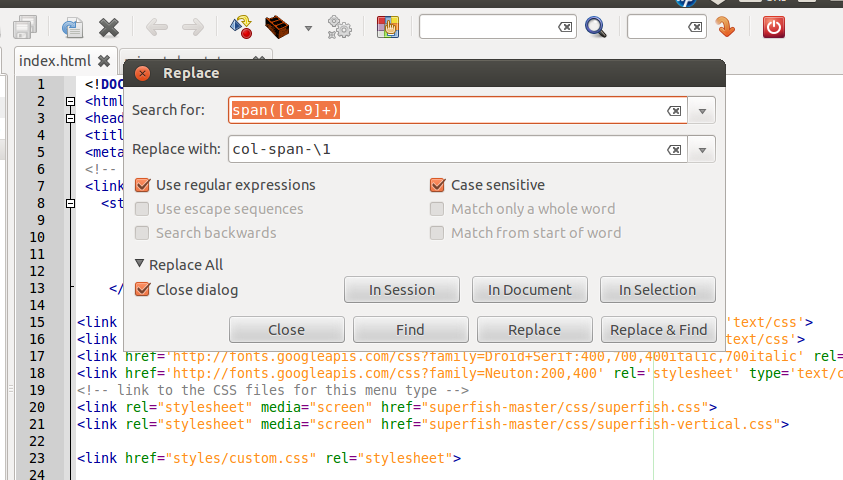
regular expression
From now Twitter’s Bootstrap defines three grids: Tiny grid for Phones (<480px), Small grid for Tablets (<768px) and the Medium-large grid for Destkops (>768px). The row class prefixes for these grid are “.col-“, “.col-sm-” and “.col-lg-“. The Medium-large grid will stack below 768 pixels screen width. So does the Small grid below 480 pixels and the tiny grid never stacks.Twitter’s Bootstrap 3 defines three grids: Tiny grid for Phones (<768px), Small grid for Tablets (>768px) and the Medium-Large grid for Destkops (>992px). The row class prefixes for these grid are “.col-”, “.col-sm-” and “.col-lg-”. The Medium-large grid will stack below 992 pixels screen width. So does the Small grid below 768 pixels and the tiny grid never stacks. Except for old phones which always will stack the elements (mobile first design). (last update about the grid based on Twitter’s Bootstrap 3 RC1, see also: Twitter’s Bootstrap 3 grid, changing breakpoint and removing padding)

See also http://examples.getbootstrap.com/grid/ for more examples of the grids. Or consider the table below:
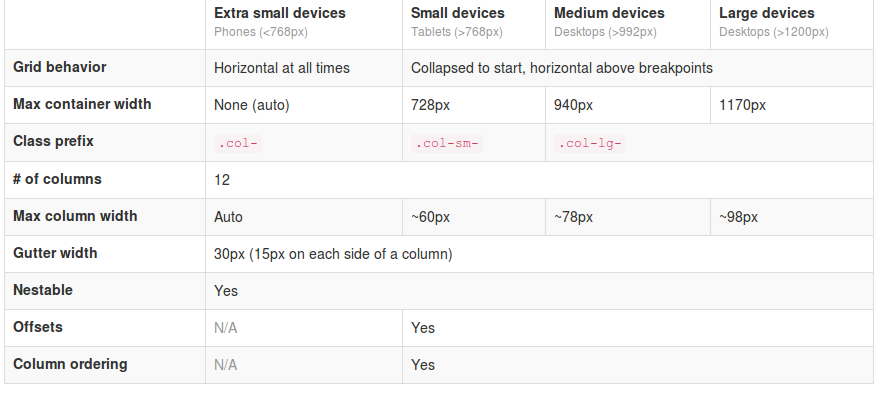
Twitter's Boostrap 3 Grid

Use Less mixins to migrate your grid

The ‘old’ span* will not be the same as col-* or col-lg-*. So replacing the class names in your templates will be give you better results. But when looking to an example like http://examples.getbootstrap.com/jumbotron/index.html you will find the the col-lg-* class in place of the former span* class. This will give you a possibility to create a mixin for span* with the same styles as col-lg-* in this case. Note: The col-lg-* will stack below 992px by default (see: New twitter bootstrap 3 grid, changing breakpoint and removing padding).

Switch to fluid layout

A fluid layout uses percents instead of pixels for column widths. Twitter Bootstrap 2.x let you choose between pixels and percents. In Twitter Bootstrap 3 the grid is fluid by default. So if you didn’t use the fluid grid it’s time to switch now. The most important difference will be the nesting of row. Using percents a nested row should get a total width of 100% too cause it gets its width from its parent. For this reason each nested level of columns should add up to 12 columns in the fluid layout. Who don’t use the fluid layout in Twitter Bootstrap 2.x will used to give a nested row a set of columns that add up to the number of columns of its parent. So find your nested rows and change their columns so their number add up to 12.

The small and tiny grid

In Twitter Bootstrap 3 anything under 768px use the so called small device grid. The small and tiny device grid also have 12 columns and are fluid too. Offsets are not available and you have to use special classes to set the columns. Use the .col-* and .col-sm-* classes for the mobilethese grids.
You can use all grid classes for the same column b.e.:

<div class=”col-span-3 col-small-span-6″>

<div class=”col-6 col-sm-6 col-lg-6″>

The above will give you a column of 50% width in the large grid, but a column of 50% in the smaller grids too. So .col-* and col-sm-* will help you to set the way of stacking the columns on small devices. The col-lg-* classes are never applied on the small grids. Without adding col-6 and col-sm-6 a div with col-lg-6 get 100% width on the small device grids. see: http://www.bootply.com/67209

Also read: Writing Twitter’s Bootstrap with upgrading to v3 in mind

Example

I migrate my free demo webshop template to TB3. After doing the steps above there still will be other thing to fix.

Responsive navbar

In these templates the menu is wrapped in a “Responsive navbar”. Also here class names are changed. The most important change here is the toggle button is now a real <button> with class .navbar-toggle. The .navbar class adds a background color now.
I change the <a> of the toggle button to button and add the .navbar-toggle class. I also add “.navbar {background:none}” to my custom stylesheets. Now the menu works and collapses as before, beside the collapsing point is at 728 pixels now in stead of 940 pixels.

Padding instead of margin

In the templates i wrapped the product boxes in columns of a row. After the migration this don’t fit any more.

In the in change log we could read: “New single grid system (still uses .row) utilizes percentages over pixels, padding instead of margin, and box-sizing: border-box for easy math.”. Each column now got b.e. padding-left: 15px and padding-right: 15px instead of margin-left: 30px;
In the template i add an extra div. This div got my custom classes and will be the parent of the product info code.

<div class=”span3 productitem allround”><div class=”productitemimage”> changed to <div class=”col-4″><div class=”productitem allround”><div class=”productitemimage”>

Input-append class

Before i create the search box with the input-append class. With Twitter Bootstrap 3 you should use the input-group class together with a input-group-btn class:

<div class=”input-group col-4″>
<input type=”text”>
<span class=”input-group-btn”>
<button class=”btn btn-search” type=”button”>Search</button>
</span>
</div>

Breadcrumbs

Twitter Bootstrap 3 adds a separator (/) automatic. You don’t need to code the separator yourself and you have to remove the <span class=”divider”>/</span> from your code. The separator is a slash with color gainsboro (#CCCCCC) by default. You could add “.breadcrumb > li:after” to your custom css to change the separator char or its color.
.breadcrumb > li:after {color:#FF0000; content: ” >”;}

Pagination

The pagination class needs to add to the ul-tag direct instead of to the containing div. But when you want to center the pagination you will have add the center class to the containing div. Note Pager links (previous / next) are centered by default.

Download

You can download this Free Twitter Bootstrap 3 template on Github. Test your own templates on http://bootply.com/ now.

Glyphicons

With the launch of Bootstrap 3, icons have been moved to a separate repository.

Responsive images

Twitter’s Bootstrap 2 makes images responsive by default (by adding max-weight:100%). Bootstrap 3 has a special class to make your images responsive. Use `class=”img-responsive”` to make your images responsive now. See also: Images not responsive by default in Twitter Bootstrap 3.0 RC1?

WordPress Bootstrap 3 Start Theme

I start to migrate the former Skematik theme to Bootstrap 3. This powerful theme framework that can be used as a standalone website builder or as a framework to create child themes for WordPress build on Twitter’s Bootstrap 3. Please give it a try: https://github.com/bassjobsen/jamedo-bootstrap-start-theme. Contributions are welcome 🙂

Migrators

Other useful links:

The migration section in the docs,
Migration Guide, PHP class for migration and Bootstrap migration tools in progress: https://github.com/iatek/bootstrap-migrate

Migrate your Javascript Plugins

Many people wrote Javascript Plugins for Twitter’s Boostrap 2.x. Some examples: Bootstrap-datepicker and Jasny Bootstrap. Most plugins can migrate to TB3 easily, see: How to migrate your Twitter’s Bootstrap Javascript plugins from version 2.x to version 3
Twitter Bootstrap 3 breakpoints and grid

Release Candidate 2 has important changes for the grid and the grid classes. Read Twitter’s Bootstrap 3 RC2 (important changes)

Twitter Bootstrap 3The most important changes in Twitter Bootstrap 3 will be the more mobile-first approaching and the grid. From now Twitter’s Bootstrap defines three grids: Tiny grid for Phones (<768px), Small grid for Tablets (<992px) and the Medium-large grid for Destkops (>992px). The row class prefixes for these grid are “.col-”, “.col-sm-” and “.col-lg-”. The Medium-large grid will stack below 992 pixels screen width. So does the Small grid below 768 pixels and the tiny grid never stacks. (updated for Twitter’s Bootstrap3 RC1)

Twitter’s Bootstrap 2 defines breakpoints at 480px, 768px, 980px and 1200px. The layout will always be fluid below 768px.

For this reason the ‘old’ span* will not be the same as col-* or col-lg-*. So replacing the class names in your templates will be give you better results. But when looking to an example like http://examples.getbootstrap.com/jumbotron/index.html you will find the the col-lg-* class in place of the former span* class.

Twitter's Bootstrap 3 Grid

Breakpoints

In variables.less you will find:

// Media queries breakpoints
// --------------------------------------------------

// Extra small screen / phone
@screen-xsmall:              480px;
@screen-phone:               @screen-xsmall;

// Small screen / tablet
@screen-small:               768px;
@screen-tablet:              @screen-small;

// Medium screen / desktop
@screen-medium:              992px;
@screen-desktop:             @screen-medium;

// Large screen / wide desktop
@screen-large:               1200px;
@screen-large-desktop:       @screen-large;

// So media queries don't overlap when required, provide a maximum
@screen-small-max:           (@screen-medium - 1);
@screen-tablet-max:          (@screen-desktop - 1);
@screen-desktop-max:         (@screen-large-desktop - 1);

// Grid system
// --------------------------------------------------

// Number of columns in the grid system
@grid-columns:              12;
// Padding, to be divided by two and applied to the left and right of all columns
@grid-gutter-width:         30px;
// Point at which the navbar stops collapsing
@grid-float-breakpoint:     @screen-tablet;

When i test this values if found something different:

  • “col-*” will be applied always (never stacks)
  • “col-sm-*” will be applied between 768 and higher (992px) (stacks at 767)
  • “col-lg-*” will be applied between 992 and higher (stacks at 991)

NOTE: @screen-small is not in use at the moment.

See also http://examples.getbootstrap.com/grid/ for more examples of the grids.

The grid of Twitter Bootstrap 3 has been change to fluid by default. Twitter Bootstrap 3 has only one breakpoint. We will find this breakpoint at 768 pixels. This breakpoint splits small screens and large screens.

Both sides of the breakpoint have a 12 column wide grid. Only modern phone will use the mobile grid, older phoned should only stack. Class names for span and offset are change to col-span-* and -*. Also Twitter Bootstrap 3 introduce new classes (col-small-span-*) for stacking in the mobile grid. You will use this new classes in combination with the standard span and offset classes for large devices:

Imagine you will add two image next to each other in a row.

Twitter Bootstrap 2: (old situation)

<div class=”row”>
<div class=”span6″><img src=”image1.png”></div>
</div>

On small screens the images will stack with a 100% width in a fluid layout.

Twitter bootstrap 3:

<div class=”row”>
<div class=”col-span-6″><img src=”image1.png”></div>
</div>

Without adding the mobile classes the images will don’t use the mobile grid and stack with 100% width.
(Note this differs from my expectation. I expected the main classes also should influence the mobile grid.)

no grid

Now we could add the new classes and let the images show next to each other with 50% width:

<div class=”row”>
<div class=”col-span-6 col-small-span-6″><img src=”image1.png”></div>
</div>

grid

You can also use this class to change the way of stacking:

<div class=”row”>
<div class=”col-span-4 col-small-span-12″><img src=”image1.png”></div>
<div class=”col-span-4 col-small-span-6″><img src=”image1.png”></div>
</div>

So we lost some breakpoints but got a small device grid back. Remember offsets are not available with the small grid. Two other new classes are col-pull-* and col-push-*. This classes help you to change the order of your columns. Also these classes are not available with the small grid.

Large screens

The new fluid grid without a default width also lets me think about large screens again. Should i made a decision about the max width of my site when viewed on a large screen? Users who use a site on an large screen with a full screen browsers window should have a reason to do so. So it seems to be more user friendly to let the user choose the max width. I found an interesting article about this: Life Beyond 960px: Designing for Large Screens. At the moment the .container class provides max-widths (728px, 940px en 1170px) for the large grid.

Twitter bootstrap buttons

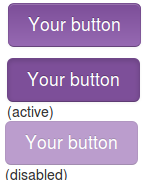
example buttons
Twitter Bootstrap is a front-end toolkit for rapidly developing web applications and websites. It is a collection of CSS and HTML conventions. Bootstrap works with LESS. If you want to use Twitter Bootstrap for your application or website LESS makes it’s possible to tailor made it to fit to your needs. When your are not familiar with LESS you could use tools like Boottheme.com.
Beside all this most people will use Twitter Bootstrap’s default configuration. To do this you can download Twitter Bootstrap from their site or include in from a CDN like BootstrapCDN. On the example page you will find many examples how to use it. You will wrote your own html and CSS(3) to implement your designs. When using buttons Bootstrap offers only 7 colors by default. Write your own css for buttons in the colors you need can be complex. Twitter Bootstrap Button Generator (Plugo labs) and link2 are nice tools to create Twitter Bootstrap Button in different colors. Both tools don’t have the opportunity to input a exact color. So i wrote a new tool which gives you three variations of buttons (dark, light and spin) based on a hexadecimal html color code. Try Twitter Bootstrap Button Generator and generate buttons for Twitter Bootstrap on the fly.

Twitter Bootstrap 3.0 is coming soon

I tested the css code of the Twitter Bootstrap Button Generator on Bootply, see: http://bootply.com/61812. This shows the buttons in the right colors. Hovers don’t work. I will release a version of the generator for Twitter Bootstrap 3 soon.To generate buttons for Twitter’s Bootstrap 3, use this generator.

Bootstrap your (designer’s) mind

bootstrap your mindMost websites are built responsive nowadays. I use Twitter Bootstrap to build responsive websites. Twitter Bootstrap is a front-end toolkit for rapidly developing web applications and websites. It is a collection of CSS and HTML conventions. Twitter Bootstrap is built on LESS. LESS extends CSS with dynamic behavior such as variables, mixins, operations and functions.
The default Bootstrap grid system utilizes 12 columns, making for a 940px wide container without responsive features enabled. When using Bootstrap to build a responsive website you have breakpoints at 480px, 768px, 980px and 1200px.
The first step of a new website is mostly the design of the web designer. We are used to get some psd files. The design is present as desktop view (optimized around a with of around 940 to 960 pixels width) mostly.
When building responsive the first thing to realize is, what happens to the details of the design on a mobile small screen? Some details will disappear cause the don’t fit or are need at all. This can ruin the idea of the designer.
Your designer maybe create an images slider, often seen in WordPress designs today, which looks good on the 960 desktop view. Of course we can create sliders responsive too. Should a mobile visitor appreciate a slider on your website? The slider will cause longer load time and extra scrolling down on a mobile phone. Maybe on bigger screens, 1200+ pixels width, such a slider will give a problem too. A big slider doesn’t look the same and beside that you will need high resolution images. Keep the slider smaller on width screen will cause lots of whitespace which is not consist with the web designers initial ideas.

What should we ask our web designer to get better results?

  1. First to respect the grid system, in our case twitter Bootstrap’s. Details outside the grid like borders and background are lost on smaller screens and are difficult to implement.
  2. Deliver results following the breakpoints. I think the web designer should keep a ‘mobile first’ approach in mind too. Your designer should give you a psd for the mobile phone view max width 320 and no grid), a psd for , etc. The end result should be designs for page in respect to the breakpoints you defined. Also pay attention to navigation and preferred order of display. On smaller screens your navigation will collapsed maybe.
  3. In the case of Twitter Bootstrap the designers should use the Bootstrap’s aspects you won’t change. By default Twitter bootstrap has buttons, forms, etc.

Some examples:

Use default elements

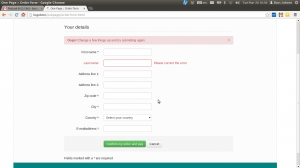
Build your forms with Twitter Bootstrap default like form elements, warnings and buttons.
default bootstrap elements

free psd

On Freepsdfiles.net you can download free psd design. When you look at this example you will see some aspects which not easy fit the bootstrap strategy. First the overlaying phone images. Yes, you could do this in bootstrap too. Using z-indexes and absolute positions. See: example. You will have to adopt all absolute positions for every break point. z-indexes won’t be useful on the small screens without grid. People won’t see the overlaying design effect. And you could wonder if you mobile phone images have any additional value for you mobile visitors at all. Secondly the design had some border effects which don’t fit the grid.

border outside the grid

I will wrote about borders and Bootstrap rows in a next post. Of course borders outside the grid can be visible on big screens you still lose them on smaller screens. More horizon design details can be an alternative maybe.

5 columns wide element

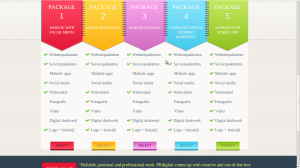
One designer offers my the 5 columns wide element shown below.
5 columns wide design element
This looks nice in the 960 grid view. What to do on bigger screens? Resize all things will give you big screaming fonts. On the other hand don’t resize will give you a lot of white space. One solution can be the center the columns. Also on smaller screen you can’t use the columns. Putting the columns under each other will give you a long scrolling list with a bad user experience. So you will have to find an other solution for small screens too.

Responsive banner ads

Responsive designResponsive design is hot, so responsive advertising is hot too. That’s why we see many new ads techniques and strategies. You will find a nice example of technique on Responsive Banner Ads with HTML5 and CSS3. Or maybe the GASP project will bring nice responsive html5 advertisements in future.
Also platforms like responsiveads.com introduce innovative techniques to show banners on responsive websites. And Google had announced to change their Adwords programm to responsive ads starting june of this year.

You will find responsive ads strategies on responsiveads.com too. To get some ideas take a look at their Ad Formats & Showcase page.

At the moment most advertisers have not adopt new responsive techniques. So i was looking for techniques and strategies to show conventional graphical banners on a responsive website. As i wrote earlier in responsive images (Dutch only) we can’t detect phone orientation or even screensize/viewport server side. Javascript can be a bridge between the media query detection of the viewport and the server side scripting. A solution for this is described on Firing Responsive jQuery Functions based on CSS Media Queries Rather than Window Width. The post gives also some other solutions: MediaCheck,jRespond and Breakpoints.js.

I found MediaCheck intuitive and uptodate so i build a proof of concept with it. Based on the viewport i load different banner formats on different positions. You can see the results by viewing the demo page on responisator or download the source on Github.

With MediaCheck you define your breakpoints based on CSS Mediaqueries like:


mediaCheck({
media: '(max-width: 420px)',
entry: function() {
console.log('starting 420');
},
exit: function() {
console.log('leaving 420');
}
});

MediaCheck is initialized with the jQuery Document Ready call so the banners are load after the page loads. This seems the main disadvantage of this method. On the other side this method prevents you from loading too much data to the client. None of the banners is hide or resize by CSS. You can use your banner loads for statistics. Every banner load should be a real view except from changing phone orientation maybe.