A11Y Buttons

The JBST WordPress Theme meets WordPress.org’s Accessibility Guidelines. I think accessibility support is important. Recently i got a e-mail from Nick, Co-founder of HKC radio.

Nick told me JBST default navbar buttons don’t have a label or title. The login button has a title when logged in, but when not logged in the button only identifies itself as ‘button’.

After reading Nick’s e-mail i found the excellent blog post of Nicholas C. Zakas: Making accessible icon buttons.

There seems two ways around to solve this button problem. The first solution adds aria-label attribute to the buttonHTML element. Whilst the second solution uses an additional spanelement which is hidden for non-screenreader by the JBST’s built-in sr-only class.

I create a sample for page for both solutions, this page also includes the current situation, could you tell me which solution you prefer and why? Or do we need a combination of these solutions?

Please also let me know when the button dropdowns got any accessibility issue.
Brand Your New WordPress Website in 10 Minutes

If you need a WordPress Website quick (or you are lazy) and you already have a house style or at least a logo, than this tutorial is all you need to brand your WordPress website. If you don’t have a logo yet, you can order one at Jamedo Logo or simply use a picture that you like.

Please follow the easy steps below to get your own branded, seo-friendly and responsive WordPress website. Your website will be built with JBST and Twitter’s Bootstrap and full customizable with Less.

  1. Download and install WordPress using the Famous 5-Minute Install
  2. Download, install (do not active) JBST. Please notice that the JBST theme is also available from the wordpress.org directory
  3. Download, install and activate JBST Branding
  4. In your Dashboard: Appearance > Branding
  5. Upload your logo / or picture
  6. Recompile the Less code

More information about downloading, installing and activating WordPress themes can be found at: Using Themes.

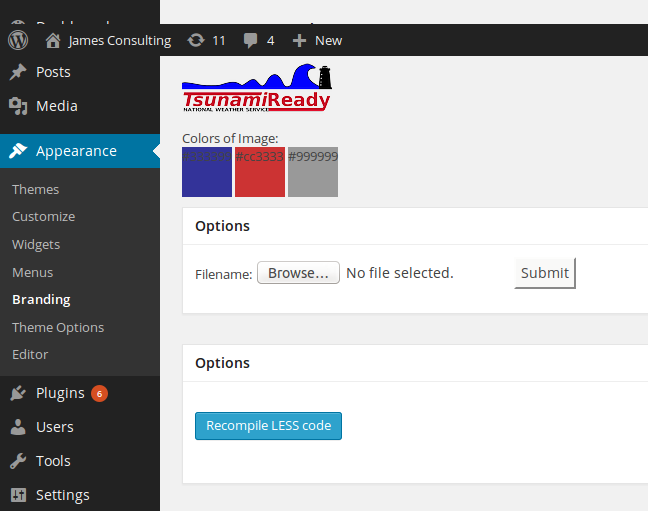
The following figure will show you how to upload your logo and recompile the Less code under Appearance > Branding in your Dashboard.

Brandingyourwebsite

The logo used in the preceding figure can be download at Pixabay and is available under the CC0 1.0 Universal (CC0 1.0) license.

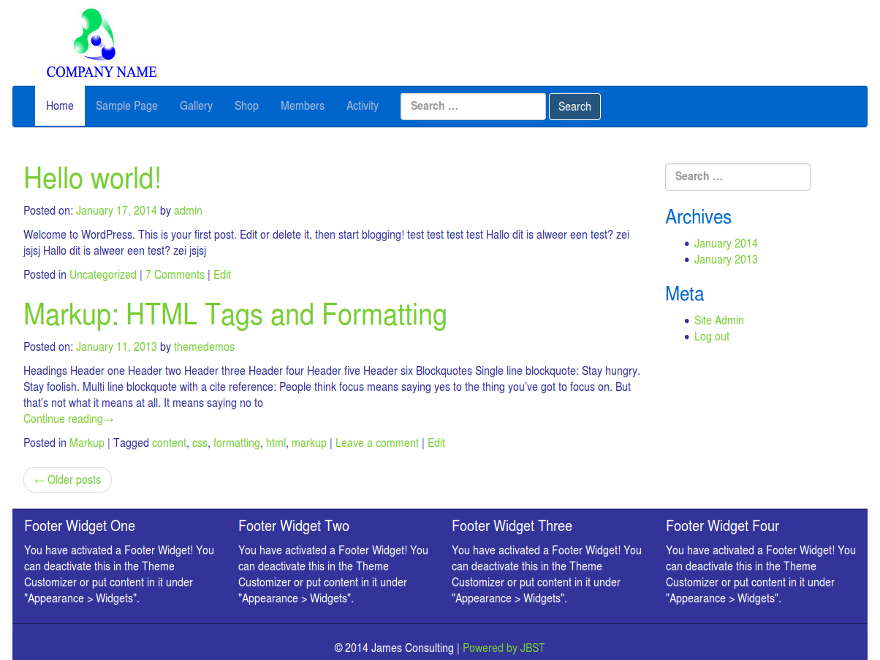
Some other examples can be found in the following figures:

brandingexamplelogo1

The logo used in the preceding figure can be download at Free Logos.

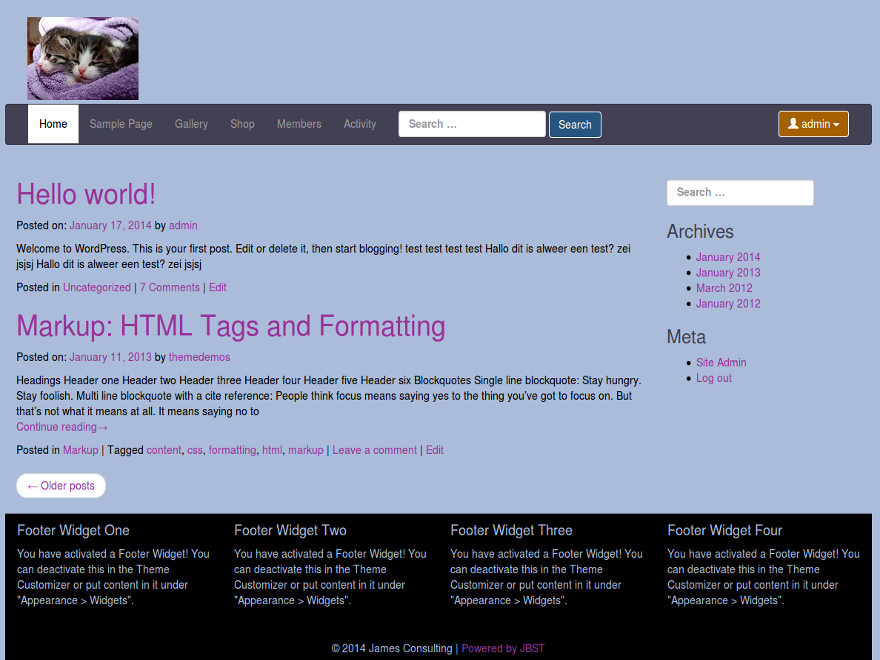
Or create a website for the cattery of the girlfriend of your neighbours’ nephew. The only thing you need is a picture of her lovely cats.

cattery

The picture used in the preceding figure can be download at Pixabay and is available under the CC0 1.0 Universal (CC0 1.0) license.

Please try it yourself and share your example designs with me.

Send an invoice automatically with WooCommerce 2.x

The Question: “WooCommerce only sends invoice when triggered in the Dashboard. How to send these invoice automatically?”. Stackexchange.com WordPress Development does not allow WooCommerce questions any more. That is why i post the answer for this question here.

Add an action to your woocommerce_order_status_completed_notification or woocommerce_order_status_pending_to_processing_notification in functions.php:

function sendinvoice($orderid)
{
    $email = new WC_Email_Customer_Invoice();
    $email->trigger($orderid);
}   

add_action('woocommerce_order_status_completed_notification','sendinvoice');